The problem
A blind person can’t juggle five separate apps on a touchscreen to find out what’s in front of them. Someone living with Alzheimer’s may not recognise the people they love. Both problems share a shape: the information exists, but the usual interface, a screen you have to look at and tap, is exactly the wrong one. We put one camera on a pair of glasses and made everything answer out loud instead.
Who it was for
The app runs in two modes, chosen in the app rather than on the hardware. Visually Impaired mode covers image captioning, landmark and object labels, face attributes, text reading, and currency recognition. Alzheimer mode does one thing on purpose: it recognises a familiar person from a single enrolled photo and says who they are.
Visually Impaired mode
- Image captioningDescribes a scene aloud when nothing more specific applies.
- Landmark labelsNames recognizable landmarks in view.
- Object detectionIdentifies everyday objects in front of the camera.
- Face detectionReports estimated gender, emotion, and age range for faces in frame — attributes, not identification.
- Text readerReads printed text aloud from signs, labels, and documents.
- Currency recognitionIdentifies an Egyptian banknote's denomination (see the deep dive below).
Alzheimer mode
- Familiar-face recognitionRecognises a person from a single enrolled photo and says who they are.
A first-time user registers and signs in, and the app then opens on those two modes. For a blind or visually impaired user, the app is meant to run with TalkBack switched on, so the screen reader announces where focus is and the recognition features speak their results. Each feature answers a different everyday question: what is in the room, which landmark is this, who is standing next to me, what do these objects look like, what does this receipt say, and which banknote am I holding. Alzheimer mode asks only one: who is this?
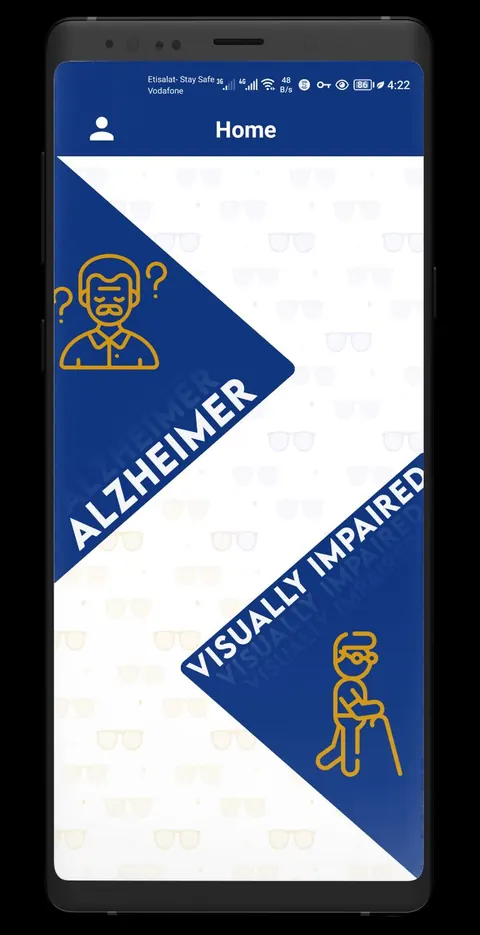
Mode
Visually Impaired or Alzheimer mode is chosen right here, in the app.
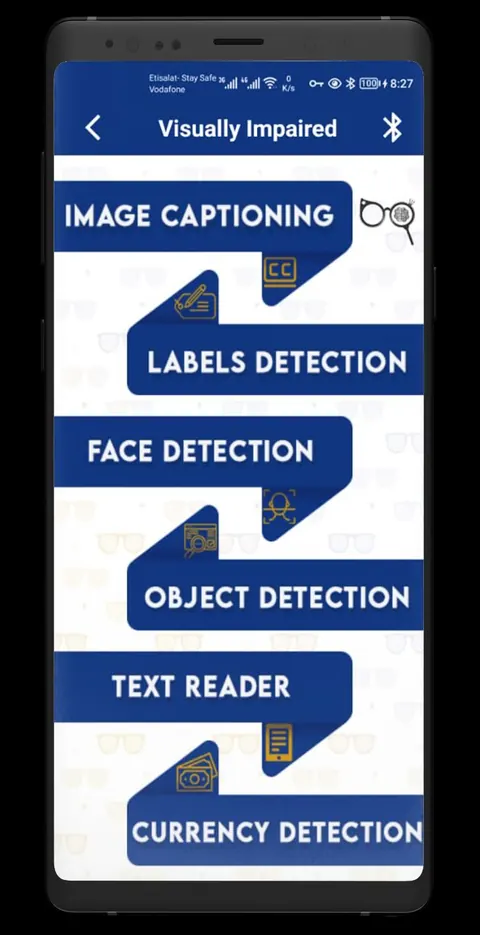
Feature
Visually Impaired mode groups six recognition features behind one menu.
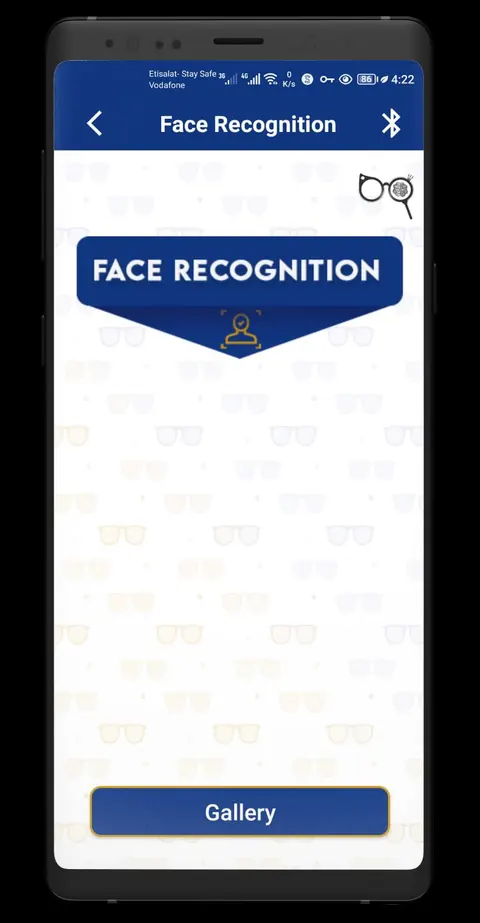
Open feature
Opening Face Recognition surfaces a single capture action.
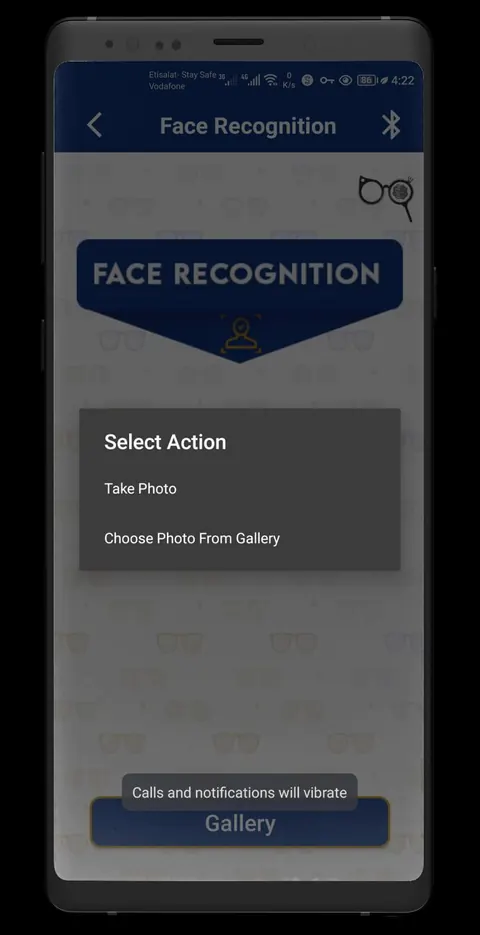
Result
Take Photo or Choose Photo From Gallery starts the capture that produces a spoken result.
01 / 01
My role
I delivered more than 80% of this five-person capstone: the Android app, the cloud integrations, the ESP32-CAM firmware and Bluetooth link, the Python service, the interface contracts between all three, error handling, and deployment. I also built the Egyptian-currency recognition feature from scratch. The team graded the project A+.
What I built
Capture starts on the glasses and ends as speech in the user’s ear, whichever mode is active. The user takes a photo in one of two ways: by pressing the button on the camera, or by choosing a picture from the phone’s gallery. A photo from the glasses travels over Bluetooth to the Android app. The app sends it on to my Python service or to a cloud vision service, depending on which feature the user opened, and the answer comes back to the phone as text that the app speaks aloud. The user never has to look at a screen to find out what happened.
I built most of every link in that chain: the firmware on the ESP32-CAM, the Bluetooth hand-off to the app, the app’s screens and speech output, and the service that sits behind it, which is why I also owned the contracts between them. That is also why the interface contracts between them mattered so much to me. The glasses only know how to capture and send an image. The app only knows how to ask for a result and say it. Each side could change without breaking the other as long as the contract held.
Glasses-mounted capture
An ESP32-CAM on the glasses captures a photo from its onboard button or the phone's gallery, then sends it to the app over Bluetooth.
Spoken interface throughout
TalkBack support and text-to-speech mean every mode, state, and result is spoken, not just shown on screen.
Mode chosen in the app
Visually Impaired or Alzheimer mode is selected from the Android app itself, never on the glasses.
Cloud vision integration
Google Cloud Vision and Azure Computer Vision cover captioning, landmark and object labels, face attributes, and text reading.
Familiar-face enrollment
A single enrolled photo, stored via Firebase, is enough for Alzheimer mode to recognise that person again later.
How it works
The glasses hand a captured image to the Android app over Bluetooth, and the app routes it either to my Python service for currency and face recognition or to the cloud vision services for everything else, then speaks whatever comes back.
The Python service is a Flask application hosted on Heroku, and the Android app reaches it with ordinary HTTP requests. Behind it, I used OpenCV for preprocessing and the face_recognition library for the familiar-face feature, with Tesseract available for reading text. Google Cloud Vision handles captioning, landmark and object labels, and text, while Azure Computer Vision adds face attributes. Firebase keeps user accounts and the enrolled faces. Splitting the work this way meant I only trained a model where the commercial services fell short, and everything else came from services that were already good at it.
Decisions that mattered
I chose cloud vision services for general recognition over training our own general-purpose vision model because a five-person capstone timeline couldn't match commercial vision quality for captioning, labels, and OCR, so I put our own model-training effort where it mattered most — Egyptian currency
I chose choosing the assistive mode inside the Android app over a hardware mode button or command protocol on the glasses because the glasses only needed to capture and transmit images; keeping mode logic in the app kept the wearable simple and reduced the ways it could fail
I chose Bluetooth to the phone with recognition running server-side over processing images directly on the ESP32-CAM because an ESP32-S class microcontroller doesn't have the headroom to run vision models itself, so the phone and my Python service had to do that work
Hard problems I solved
Most of the hard problems came from the same constraint: the person using this product cannot see a progress indicator or an error dialog. Every wait, failure, and success has to be spoken, and every wait has a cost. The team’s own future-work slide names the two that bothered us most, server pricing and response time, and we left both as the first things to optimise next.
ProblemEvery cloud vision and currency-recognition call added server cost and round-trip latency.
FixI kept each interaction to a single request from the app to my Python service, and left cost and latency named as the priority for future optimization rather than overstating what was already fast enough.
ProblemThere's no screen, so every mode, action, and result has to reach the user some other way.
FixTalkBack and text-to-speech cover every app state, so a result is always spoken, never only displayed.
ProblemA Bluetooth link between glasses and phone is less reliable than a wired connection.
FixI added retry and error handling around the wearable capture path so a dropped connection didn't strand the user mid-interaction.
Tech stack
- Wearable
- ESP32-CAM: ESP32-S camera module with an OV2640 camera and microSD, mounted on the glasses
- Arduino framework: Firmware for the ESP32-CAM
- Bluetooth: Link from the glasses to the phone
- Android app
- Android (Java): Client application language
- Retrofit: HTTP client to the Python service
- TextToSpeech: Spoken output for every result
- TalkBack: Screen-reader accessibility support
- Recognition services
- Python (Flask): Currency- and face-recognition service, hosted on Heroku
- OpenCV: Image preprocessing
- face_recognition / dlib: Familiar-face recognition in Alzheimer mode
- Tesseract OCR: Text reading
- Google Cloud Vision: Captioning, labels, objects, OCR
- Azure Computer Vision: Face attributes and additional vision coverage
- Cloud & tooling
- Firebase: User accounts and enrolled familiar faces
- Heroku: Hosts the Python recognition service
- Android Studio
- PyCharm
- Google Colab: Training the currency-recognition model
Outcome
Mind’s Eye shipped as a working, gradeable system: a wearable capture path, two selectable modes, seven recognition features between them, and a currency-recognition model I trained and served myself. The five-person team earned an A+ on the capstone, and I delivered more than 80% of what made it work end to end.
What I learned
Integration is the engineering problem.
No single piece of Mind’s Eye was exotic on its own — a microcontroller, a phone app, a couple of cloud APIs, one model I trained myself. What made it hard was getting all of them to agree on a contract: what an image capture looks like, what a recognition result looks like, and what happens when any one link in that chain is slow or drops out.
What I’d do next
The team’s own future-work notes point at two real gaps. The currency model classifies one note’s denomination at a time and can’t yet total a handful of mixed cash, and server cost and latency for the cloud vision calls need real optimization before this could run at a larger scale. Both are software problems, not hardware ones, and both are the kind I’d tackle first.
Our notes list a few concrete steps. We would move to a more capable server so it could run more complex commands and models, and resize photos before upload so each request takes less time to process. We would also let a visually impaired user skip signing in, since only Alzheimer mode needs an account to hold the enrolled faces. Finally, we expected newer cognitive services to appear that could make responses faster, and we planned to swap them in where they helped.